.png?width=200&height=58&name=Primary_White_XYCLE_Logo.png-09%20(2).png)
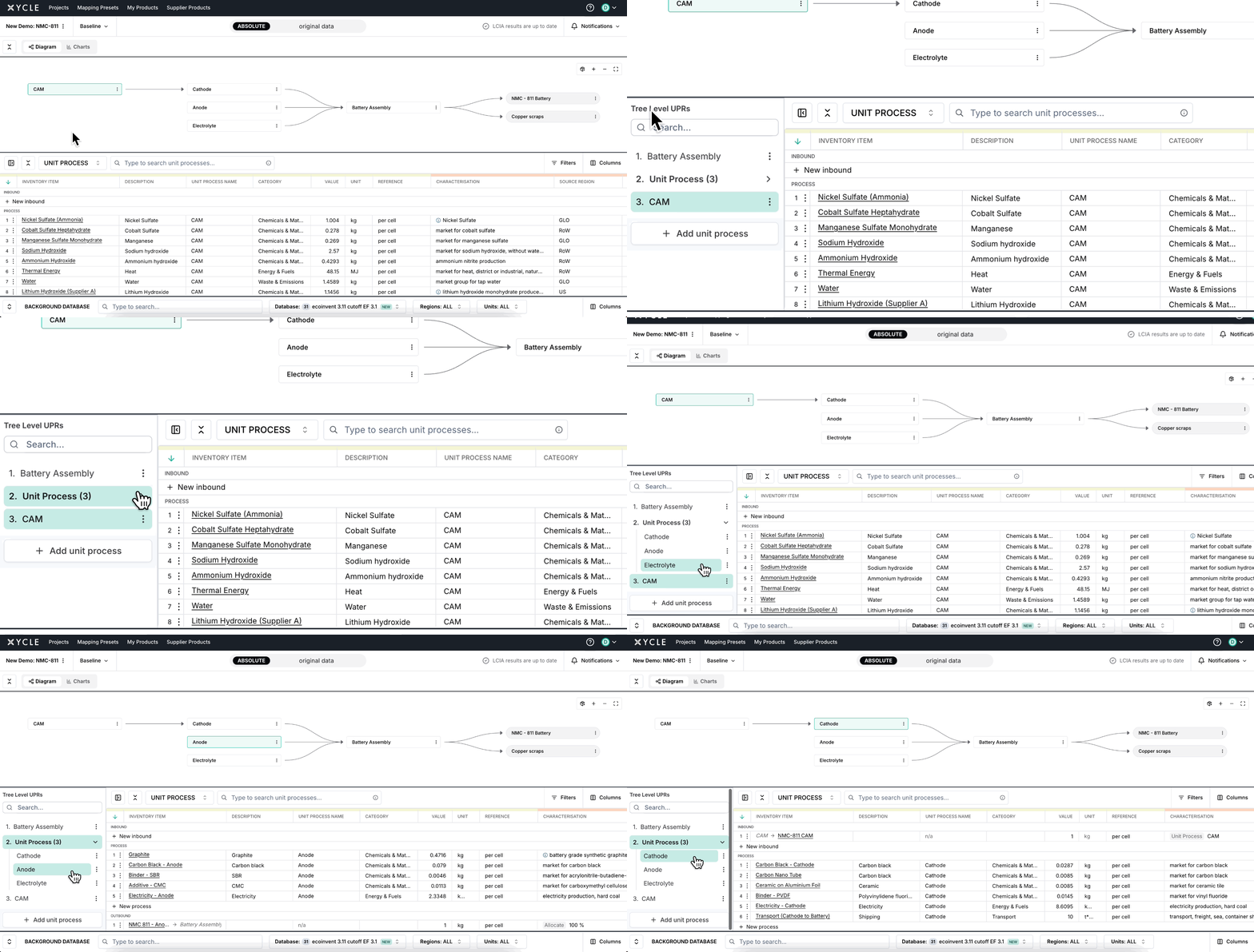
The Tree View gives you a structured way to explore the unit processes in your model. It helps you navigate, add and manage even the most complex node diagrams with clarity and control.
Key Functionality
1. Expand and Explore Node Levels
The Tree View displays unit processes in levels, grouped by their position in the node diagram. Level 1 represents the most downstream nodes, and the levels increase as you move upstream.
You can expand or collapse each level to focus on the parts of the model you are working on. The level number gives you a quick reference to its position within the structure.
2. Search and Filter
Use the search bar at the top of the panel to find a specific unit process. The list filters in real time as you type. If there are no matches, you will see a message confirming that no unit processes were found. You can clear your search to return to the full list.
Tip:
- In the Unit Process view, selecting a result will highlight the node in the diagram
- In the All Inventory Items view, the search filters the Unit Process Name column only. It does not select a node
3. Add, Edit, and Delete Unit Processes
- Add: Create new unit processes directly from the Tree View. The system automatically recalculates your model once added.
- Edit: Rename a unit process by pressing Enter or confirming via the action panel. A confirmation toast will appear once the change is applied.
- Delete: Click delete and confirm. The node is removed and recalculation occurs automatically.
4. State Awareness and Persistence
The Tree View remembers your interaction preferences:
- If collapsed, it stays collapsed when toggling between views.
- If expanded, it reopens in the same state.
5. Sticky Headers and Footers
When navigating long lists, the Tree View header remains pinned to the top and action buttons stay visible at the bottom, ensuring ease