.png?width=200&height=58&name=Primary_White_XYCLE_Logo.png-09%20(2).png)
Parameters act as reusable values that can be referenced across your project. Formulas allow for dynamic calculations inside supported fields.
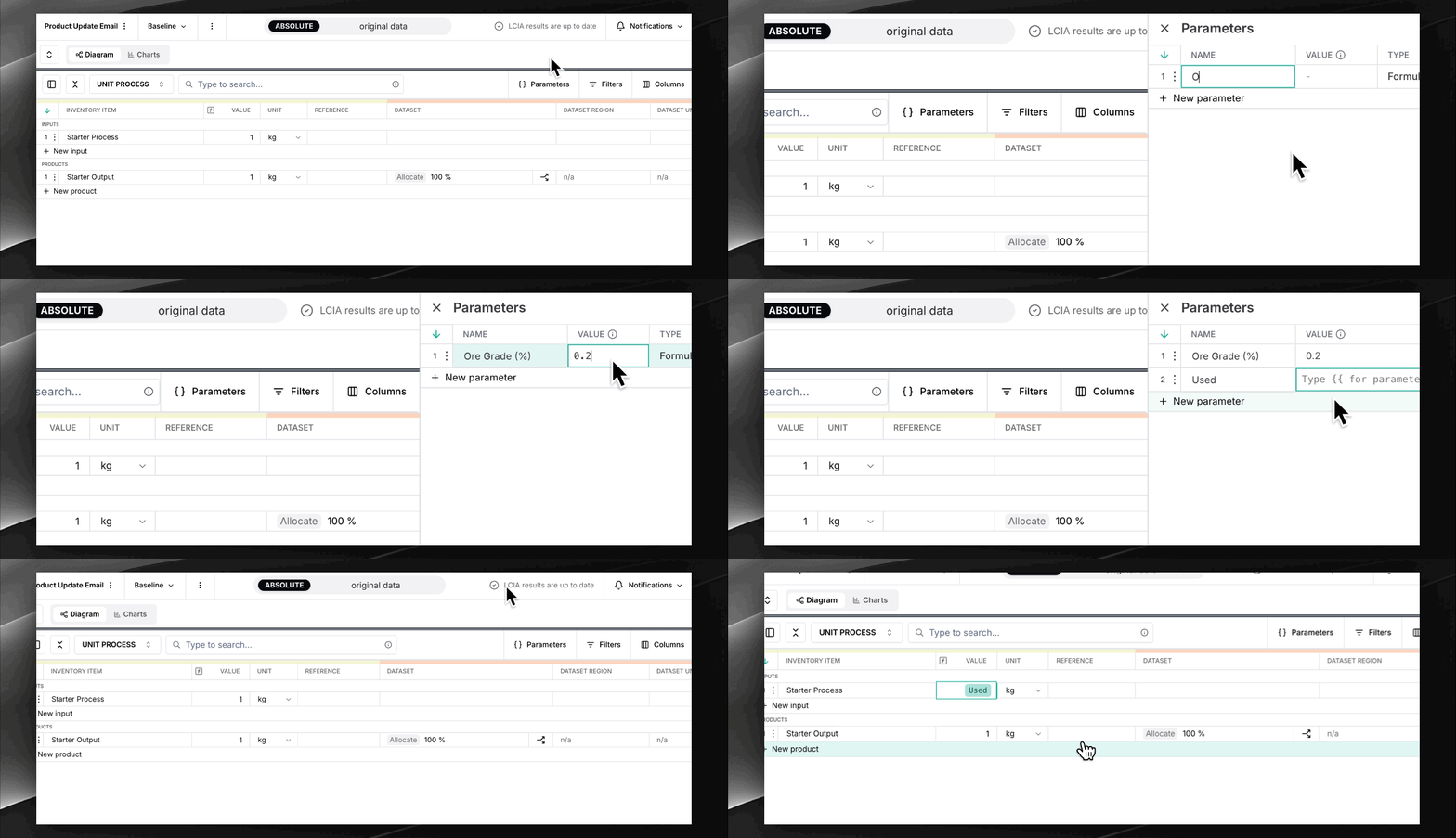
Where You Can Use Parameters and Formulas
You can input parameters or mathematical expressions in the following fields:
- Value
- Conversion rate
- Allocated value
- CFF fields: Allocation Factor, Conversion Rate, Quality of Materials, Recycled Rate
Using a Formula
To enter a formula:
- Type a valid mathematical expression into a supported field
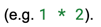
- Click outside the input to save. If valid, the field will show the calculated value.
- To edit the formula, click back into the field. The original expression will reappear.
If your formula is invalid (such as incorrect syntax), a notification will alert you that the value was not saved.
Creating a Parameter
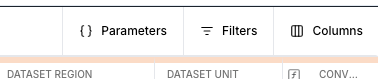
- In the LCI table, click the Parameters button located in the top right of the header.
- A sidebar will appear. Click + New parameter at the bottom.
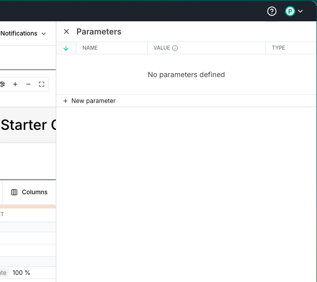
- A new row is created with a default name. You can rename it, but names must be unique within the project. If a name already exists, you’ll see a warning icon.
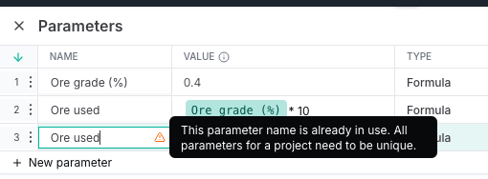
- Enter a value or formula for the parameter. Formulas can include other parameters, referenced using double curly brackets,

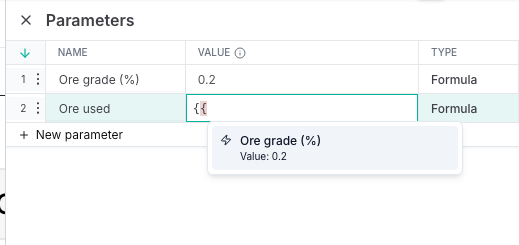

- Valid parameters are styled as green pills
- Unknown or mistyped parameters appear as red pills, and cannot be saved
To edit a pill, click it. The styling will disappear so you can make changes.
Parameters are available project-wide, meaning you can use them across all scenarios.
Using Parameters in the LCI Table
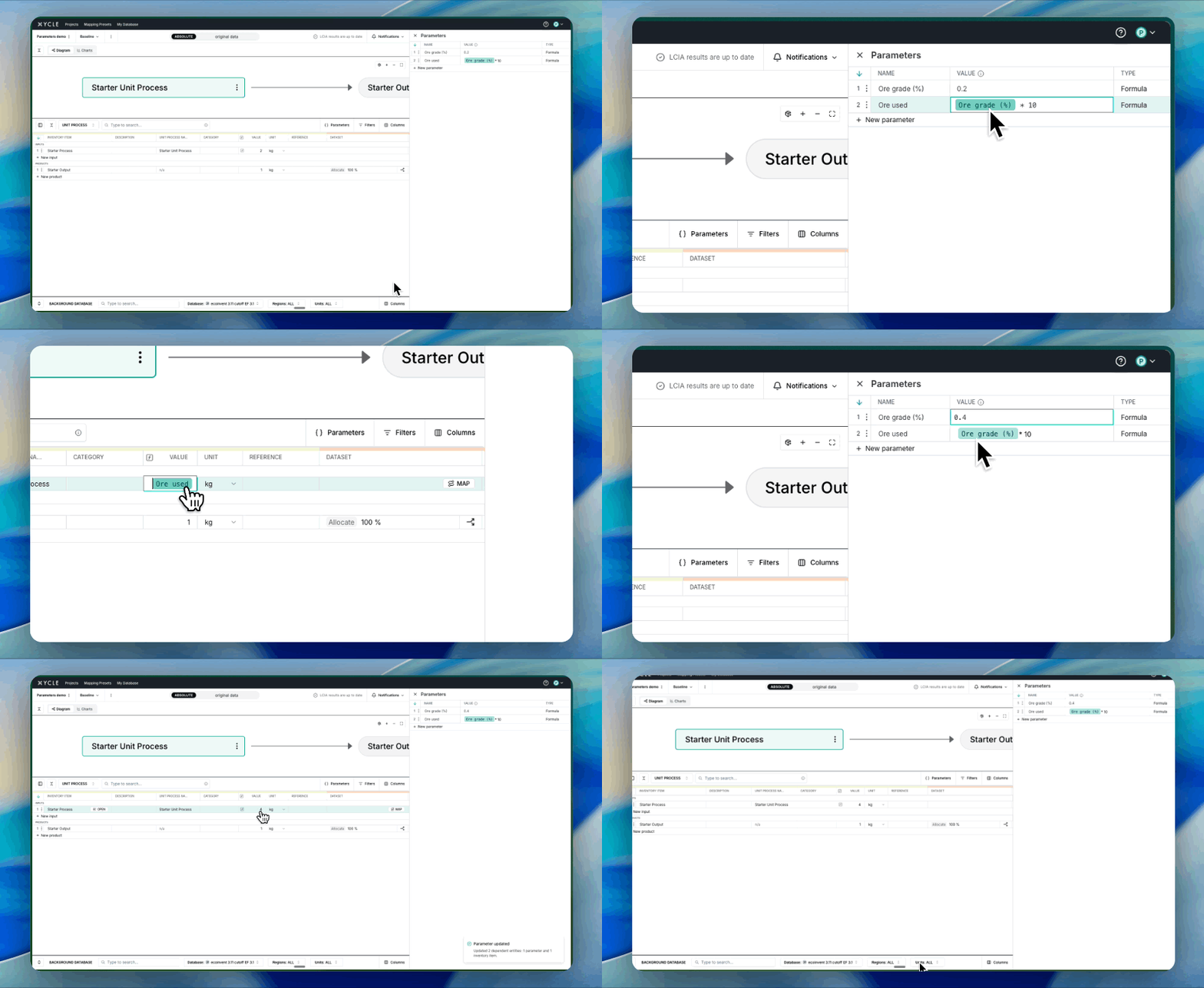
To use a parameter in a field:

- Click outside the field to save. The calculated value will appear.
- To view or edit the parameter, click back into the field.
Updating a Parameter
When you change the value of a parameter, any field or parameter using it will recalculate automatically.
If the updated value causes an issue (such as exceeding a field’s maximum), the update will still go through, but you’ll be notified which fields failed. You’ll see a toast notification letting you know whether the update was successful, partially successful, or failed entirely.