.png?width=200&height=58&name=Primary_White_XYCLE_Logo.png-09%20(2).png)
As your models grow, inventories can quickly become complex. Process diagrams may start to overlap, and it can be difficult to find or check specific inputs and outputs. Inventory navigation filters in XYCLE make it easier to work with large projects by helping you search, filter, and focus on what matters.
What you can do with inventory navigation filters
- Switch to the table view
When navigating your inventory, you can collapse the process diagram and view your data in a structured table format. This is especially helpful in large models, where the visual diagram becomes difficult to follow. From the Unit Processes table, you can choose whether to display data for a single unit process or across the entire inventory. You’ll still be able to move between unit processes easily using the side panel → read more. - Search your inventory
Use the search bar to look across all unit processes in your inventory. For example, you can quickly find all transport datasets or a specific material input such as Nickel Sulfate. - Apply advanced filters
Open the Filters panel to refine what you see. Options include:- Show only unmapped processes
- Narrow results by category (e.g. Energy & Fuels)
- Focus on specific contributors
- Sense-check your inventory
Filters make it easier to review large inventories, ensuring consistency across inputs and outputs without needing to scroll through complex diagrams. - Bulk mapping
Once you have filtered the process you want to update, you can apply bulk mapping. This lets you replace all selected items with a different dataset in one step. For example, you might swap all heat sources in a process for a borehole heat exchanger dataset, or update all electricity inputs to use a Canadian grid mix.
Example workflow
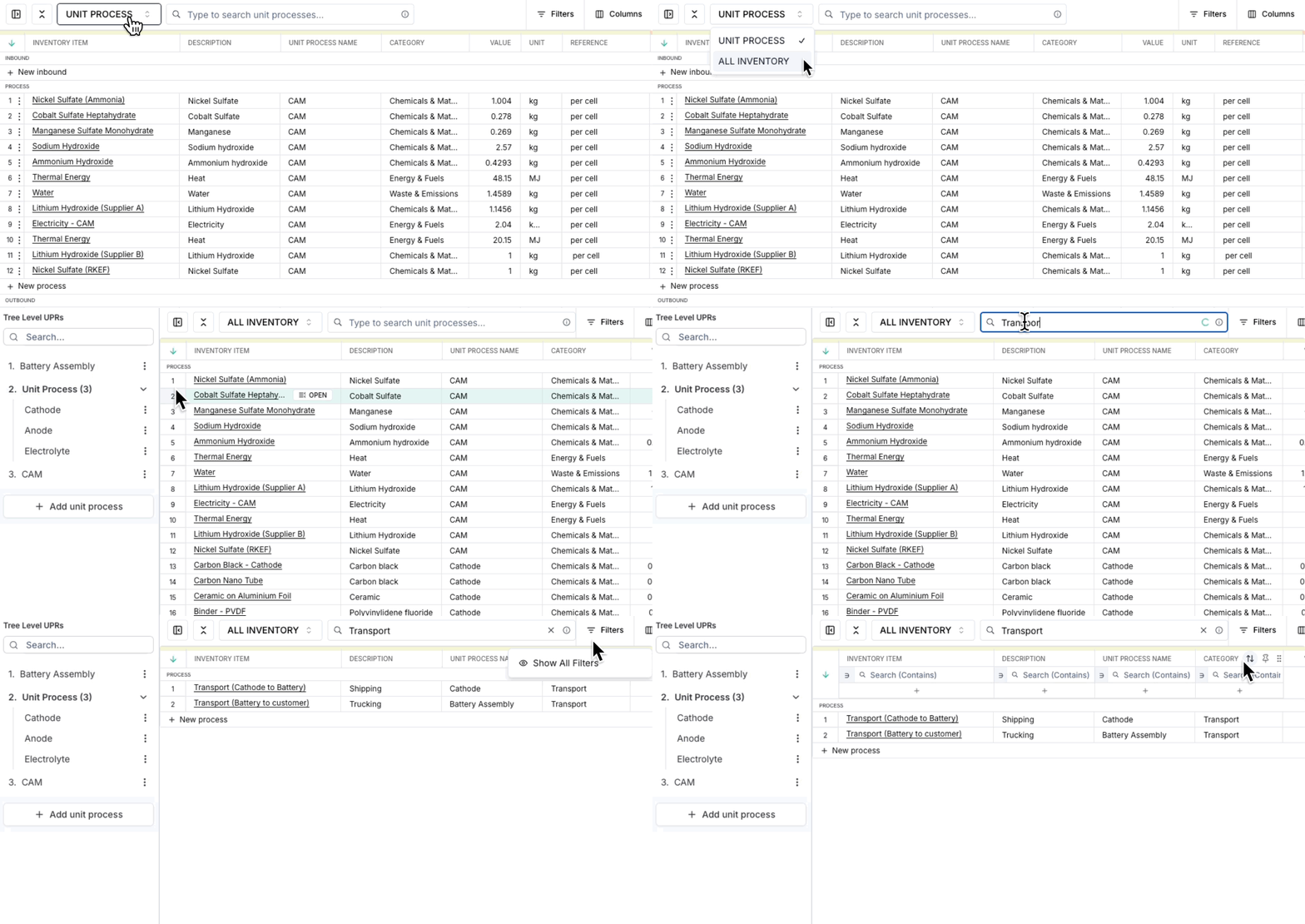
Below, the inventory table shows an NMC-811 battery model with many chemical, energy, and transport inputs.
Here is how filters can simplify the work:
- Open the inventory table beneath the process diagram.
- Use the search bar to find all transport processes, such as Transport (Cathode to Battery).
- Open the Filters panel to show only unmapped processes or narrow results by category (for example, focusing on Energy & Fuels).
- Select the filtered processes and use bulk mapping to assign them to a consistent dataset, such as ensuring every electricity input uses the same grid mix.
This approach saves time and keeps large inventories consistent without having to make changes one by one.