.png?width=200&height=58&name=Primary_White_XYCLE_Logo.png-09%20(2).png)
To calculate a product’s environmental impact, each inventory item in your LCA project must be linked to a background dataset. This guide walks you through how to use the Background Database panel to search, map, and characterise your data for LCIA results.
You can do this in three ways: from the inventory row, from the database search, or using bulk mapping.
1. Mapping from the Inventory Row
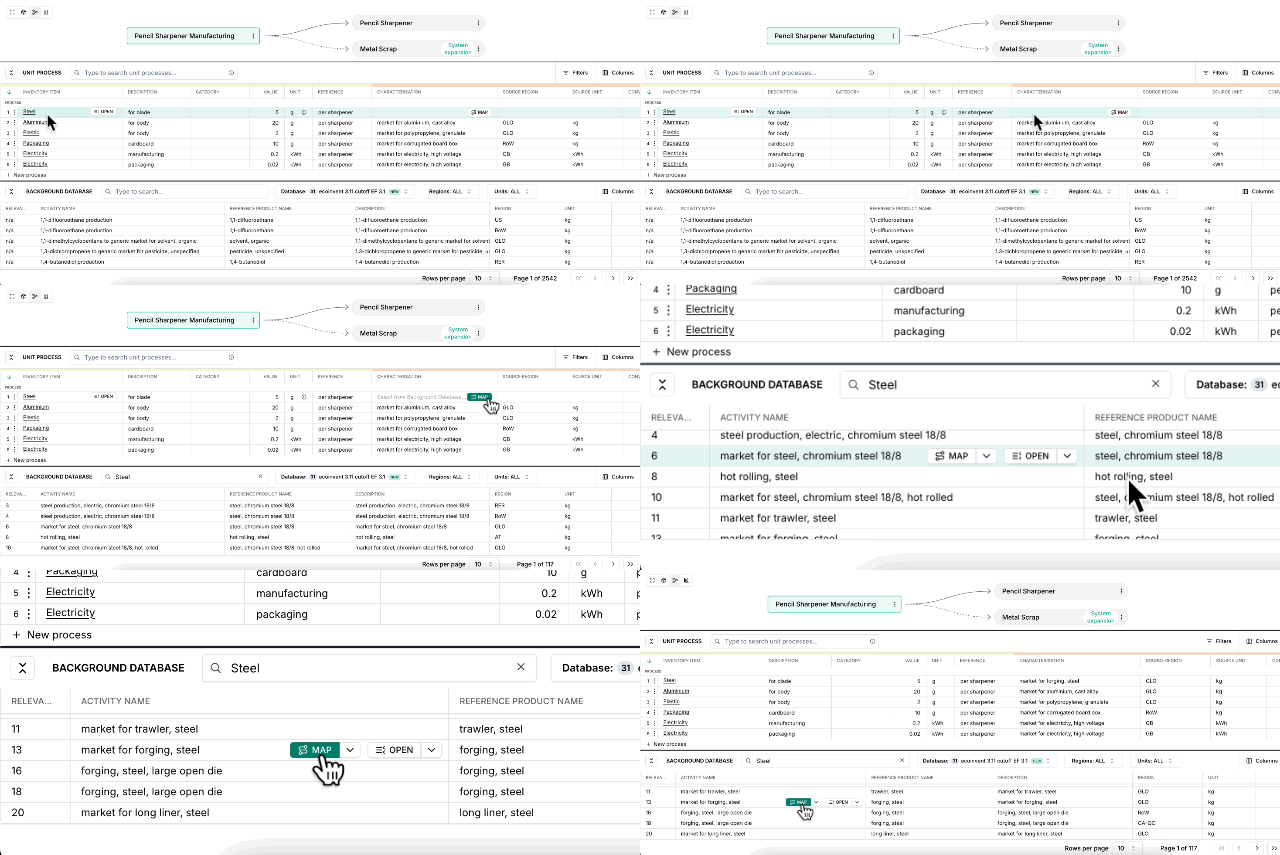
If your inventory item is already listed in the table, scroll to the right and click “Map” under the Characterisation column.
This will automatically search the background database for similar terms.
- Browse the results in the panel.
- Click “Map” on the correct dataset.
- The dataset will be linked to the row, and the Characterisation cell will be updated.
2. Mapping from the Background Database Panel
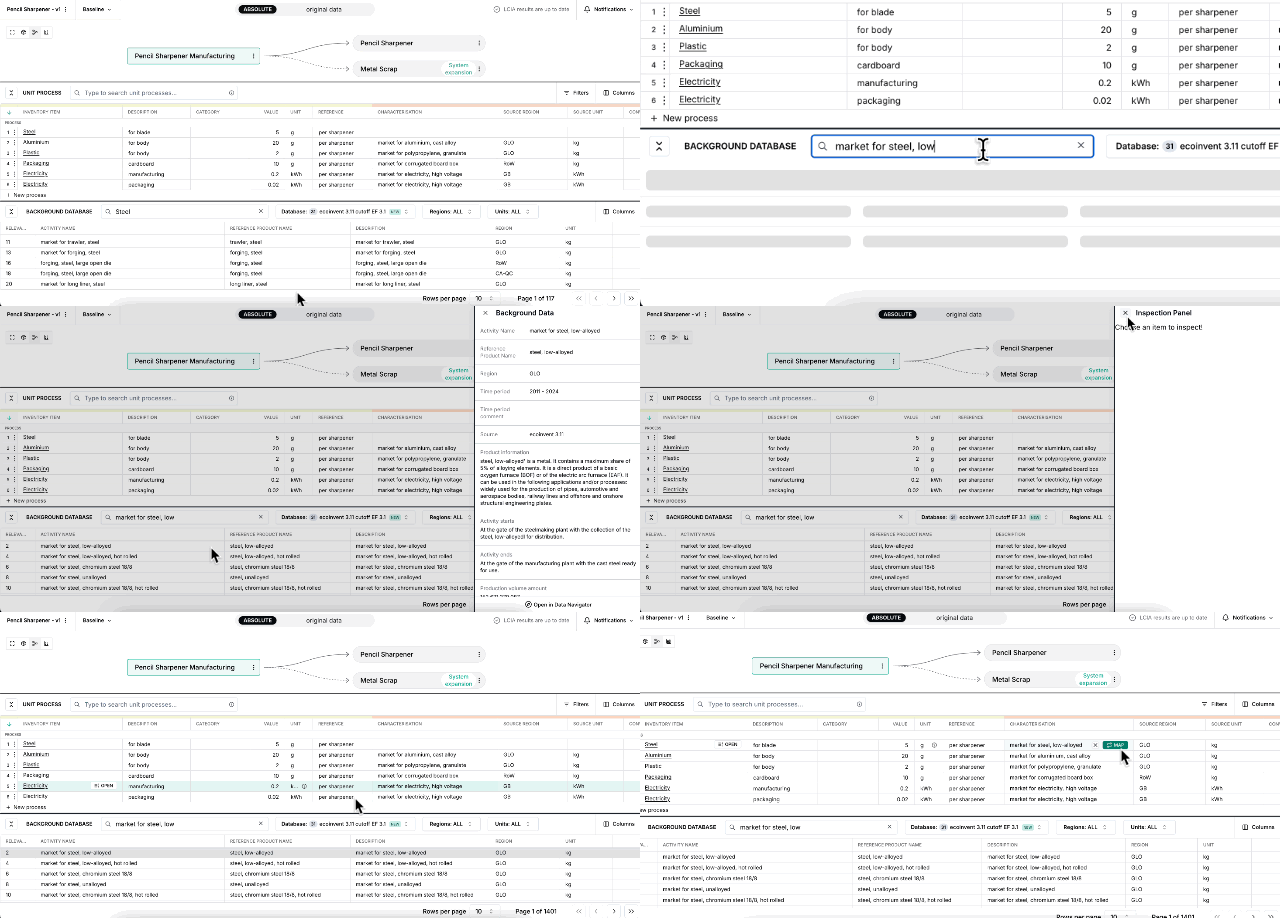
Alternatively, use the Background Database panel directly.
- Use the search bar to manually look up a dataset.
- Click “Map” on the selected result.
- Then, return to your inventory table and click the corresponding Characterisation cell in the right row to finalise the mapping.
This approach is especially useful if you're not starting from an existing inventory row or want to browse available options before assigning them.
3. Bulk Mapping Multiple Inventory Rows
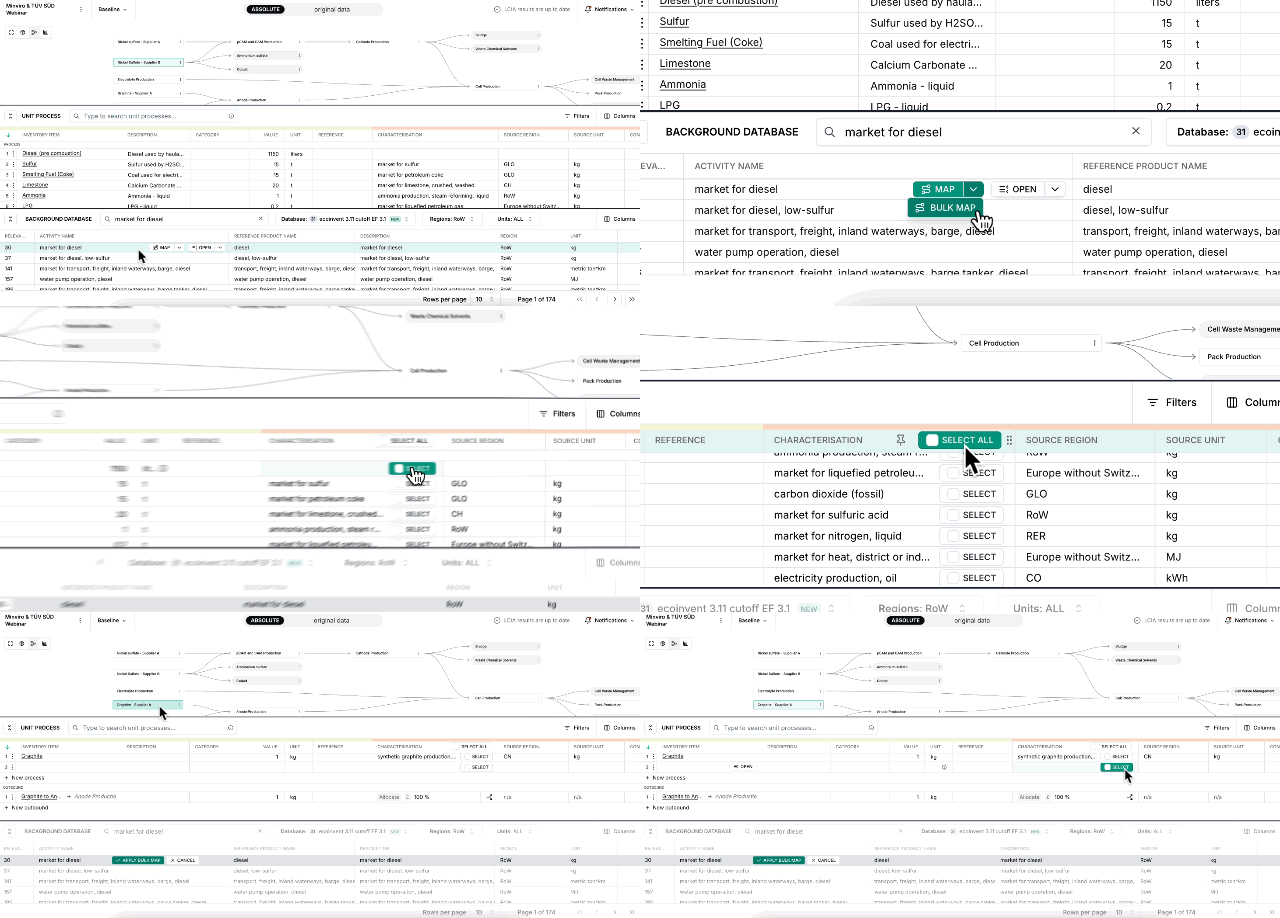
Bulk mapping allows you to apply a single dataset to multiple inventory items at once.
- Click the “Bulk Map” button in your project view.
- Choose how many inventory items you’d like to apply the mapping to.
- You can also apply the mapping across other unit processes if needed.
- Click “Apply” to confirm.
4. Confirm the mapping
The characterisation factor is now mapped. You will see the dataset appear in the Characterisation cell of your inventory row.
5. View generated impacts
Scroll to the right in the inventory table to view the Impact Results that have now been calculated using the mapped background dataset.
Final Check
Repeat this process for all inventory rows. A complete LCIA result requires that every relevant inventory item is mapped and characterised using background data.