.png?width=200&height=58&name=Primary_White_XYCLE_Logo.png-09%20(2).png)
What are functional units?
In Life Cycle Assessment (LCA), results are always tied to a functional unit. A functional unit is the measuring stick that describes what a product actually does, so results can be fairly compared.
For example:
- A lightbulb is not just “one bulb.” Its functional unit could be 1,000 hours of light.
- A battery cell is not just “one cell.” Its functional unit might be per kWh of energy stored or per kg of weight.
By using functional units, results reflect the service provided rather than just the size or number of products.
Managing functional units in XYCLE
XYCLE allows you to add and switch between multiple functional units for the same product. This means you can:
- View results in different units without duplicating products.
- Export charts and data in the functional unit your stakeholders need.
- Meet requirements such as the EU Battery Regulation (for example, per kWh lifetime energy capacity).
How to manage functional units
- Open your product in the LCI table.
- Select Functional Units from the options.
- A modal window will appear (see image below).
- Add additional functional units.
- In the modal, the Primary Functional Unit is shown at the top (for example, 1 kg NMC-811 CAM).
-
- In the rows below, you can add up to five additional units by entering a conversion factor.
- In the rows below, you can add up to five additional units by entering a conversion factor.
- Example inputs:
- 1 kg NMC-811 CAM = 0.25 kWh cell capacity
-
- 1 kg NMC-811 CAM = 0.002 battery pack
-
- 1 kg NMC-811 CAM = 200 kWh lifetime energy
- 1 kg NMC-811 CAM = 200 kWh lifetime energy
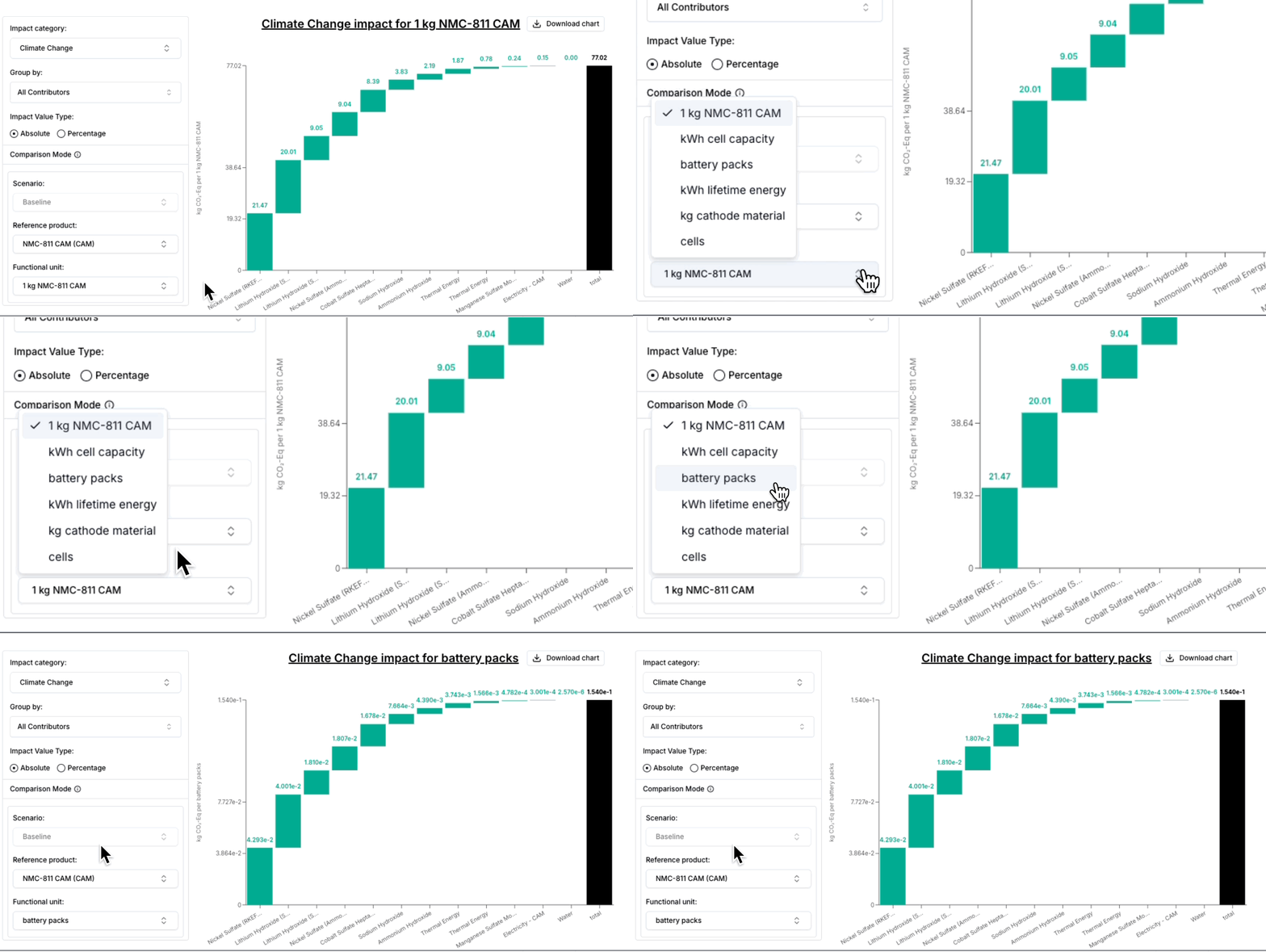
- Switch between units.
- On the charts page, select the unit you want to view from the dropdown.
-
- In exports, choose the unit to include in your results file.
- Set a reference unit (optional).