.png?width=200&height=58&name=Primary_White_XYCLE_Logo.png-09%20(2).png)
Adding New Unit Processes from a Preset
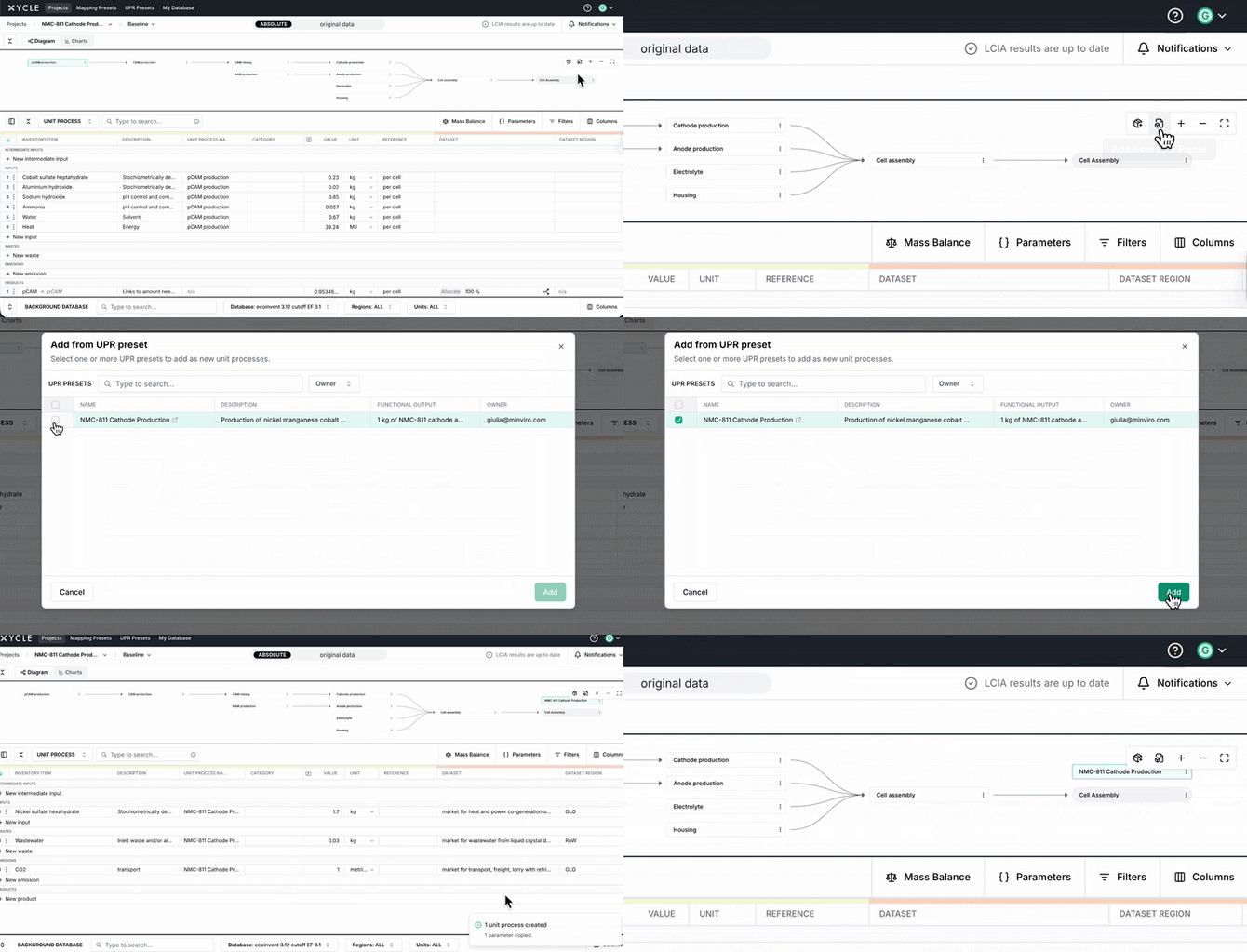
From the flow diagram:
- From the node diagram buttons, click on the Add unit process button
- Search or filter by owner in the browse modal
- Select one or more presets
- Click Add
From the Tree Level UPRs:
- From the tree level UPRs sidebar, open the Add unit process dropdown
- Select Add from UPR Preset
- Search or filter by owner in the browse modal
- Select one or more presets
- Click Add
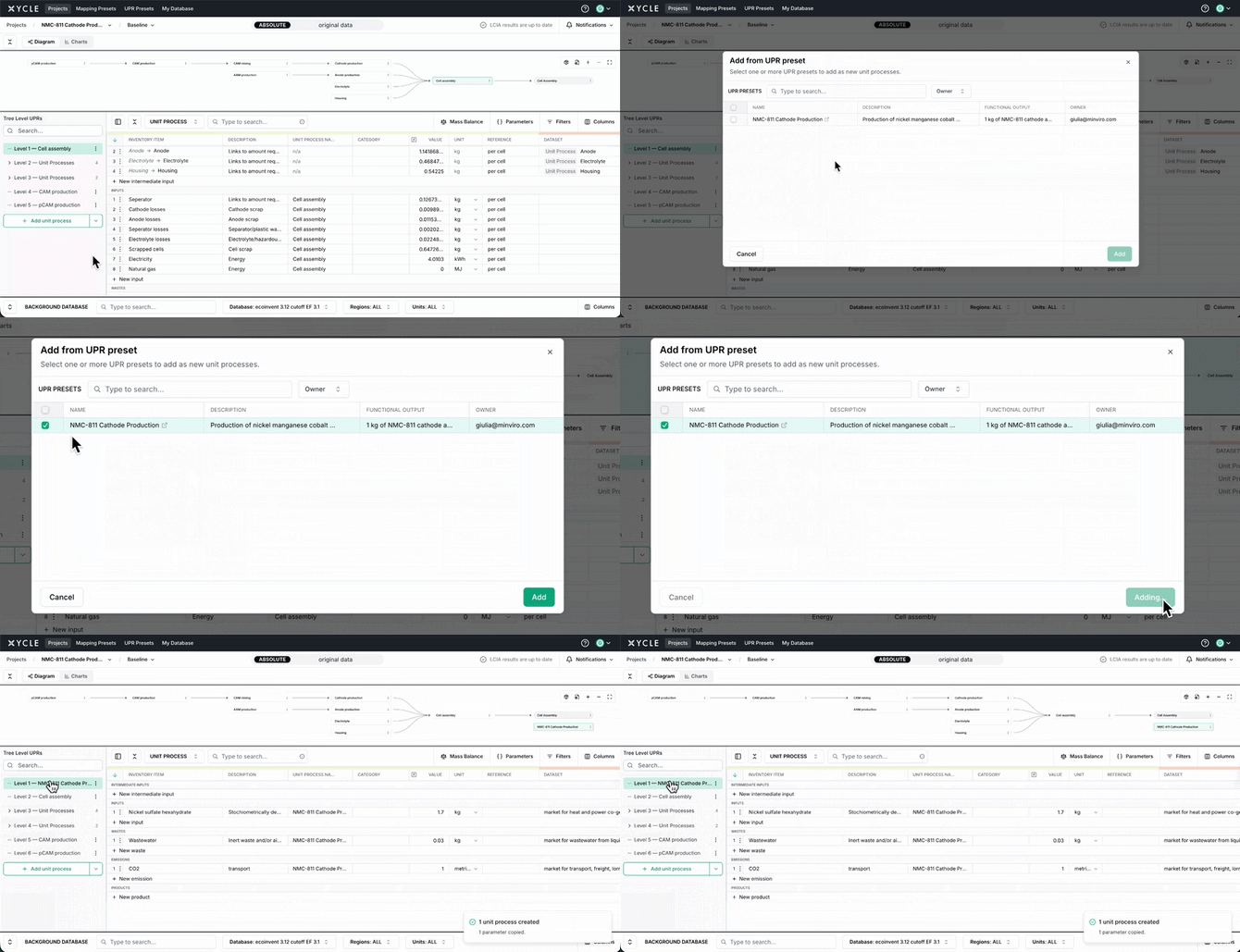
Each selected preset creates a new unit process populated with its inventory items. You can also use the UPR Preset button in the flow diagram toolbar.
Populating an Existing Unit Process
Click the three-dot menu on a unit process in the tree level UPRs sidebar or on a node in the flow diagram
- Click the three-dot menu on a unit process in the tree level UPRs sidebar or on a node in the flow diagram
- Select Populate from UPR Preset
- Select one or more presets
- Click Populate
Preset rows are appended after your existing rows. Nothing already in the unit process is changed or reordered.
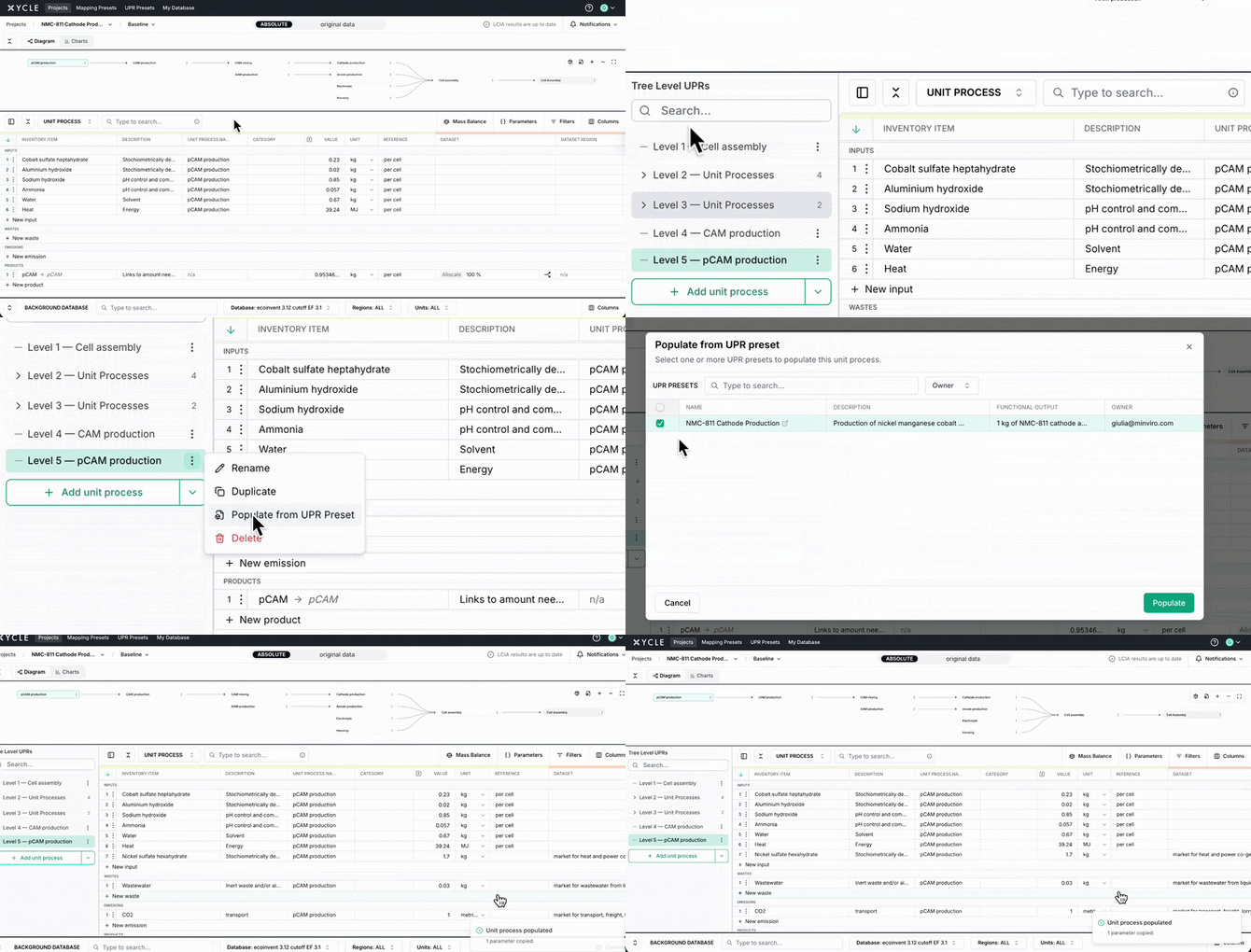
This is especially useful when combining items from multiple presets. For example, merging a "Cathode Inputs" preset with a "Shared Transport" preset.
How Parameters Are Handled
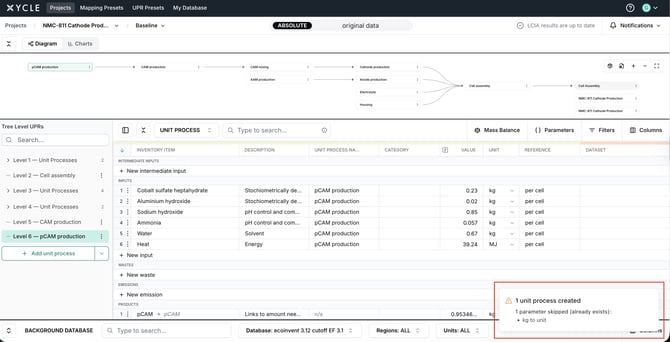
Preset parameters are copied as project-level parameters on import.
If a parameter name already exists in your project, the existing value is kept and the preset parameter is skipped. A toast notification confirms how many items were copied and lists any skipped parameters.
Troubleshooting
- I imported the same preset twice and now have duplicate rows.
Each import appends rows independently. Check your inventory before re-importing. - I want to combine multiple presets into one unit process. Use Populate from UPR Preset on the same unit process multiple times. Each set of rows is appended in order.
Next Steps
To learn more about building your LCA model, see "Step 1: How to Build Your First Model".