.png?width=200&height=58&name=Primary_White_XYCLE_Logo.png-09%20(2).png)
Key Learning Outcomes
- Create a project with organisation-wide visibility
- Understand the difference between personal and organisational projects
- Manage access and transfer ownership within your team
- Invite external collaborators to an organisation project
Set Project Visibility at Creation
When creating a new project, whether from scratch or via import, set the Visibility dropdown to Organisation. Every member within your organisation can immediately access the project once it's created. Choose Personal if the project should only be visible to you and anyone you explicitly invite.
Browse Your Organisation's Projects
Click on the Organisation tab on the project list to show only projects shared within that organisation.
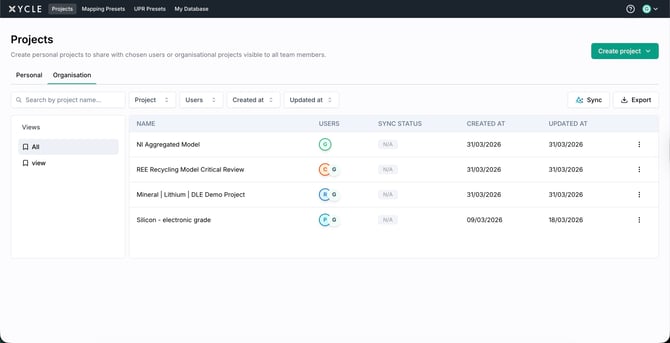
Manage Access via the Share Modal
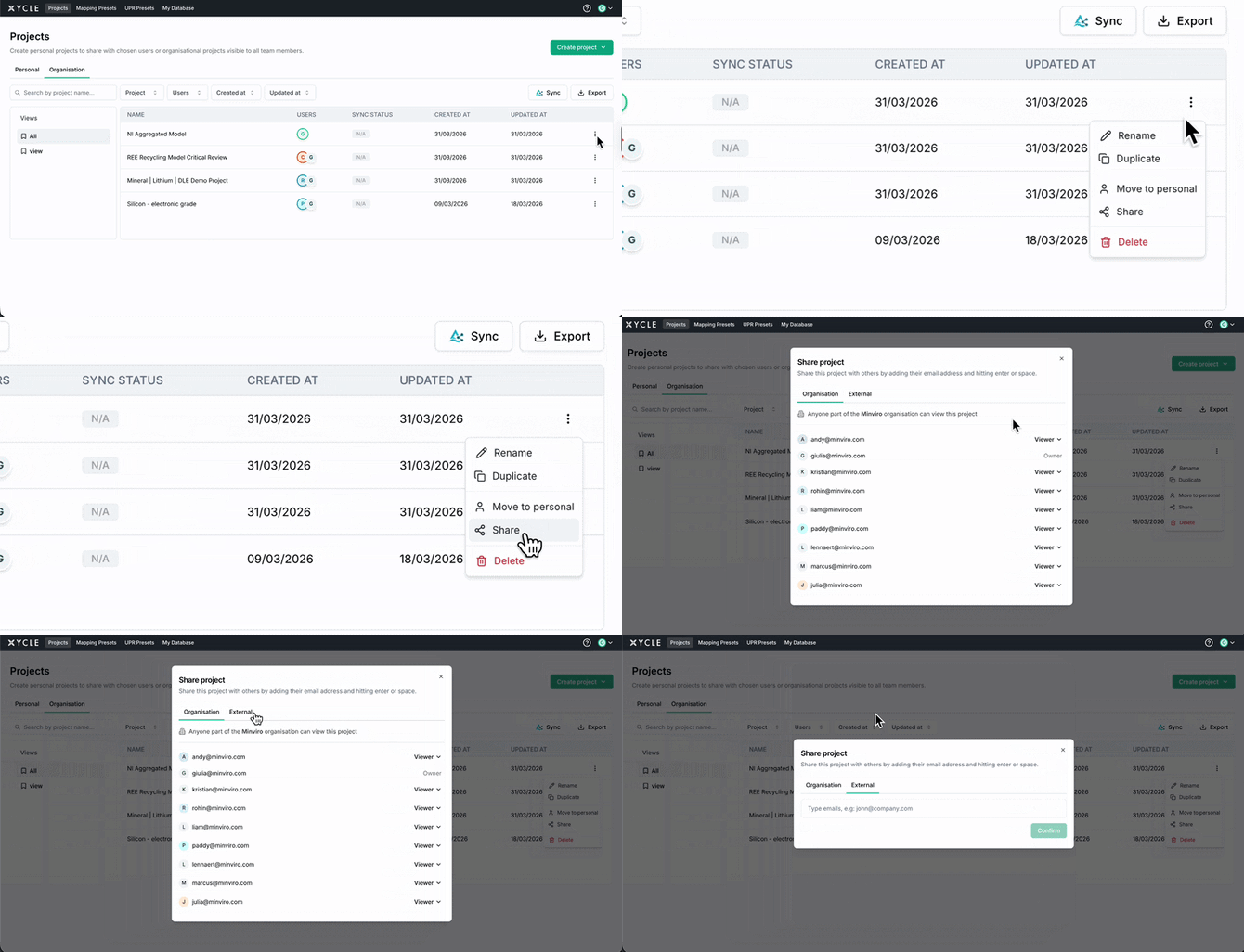
Open any organisation project and click “Share”. The modal has two tabs:
- Organisation: shows all team members with their current access level. A banner confirms: "Anyone part of the [Organisation Name] organisation can view this project." You cannot remove individual members because they have access through their membership.
- External: invite collaborators outside your organisation by email. Set each as Viewer or Owner, and remove them at any time.
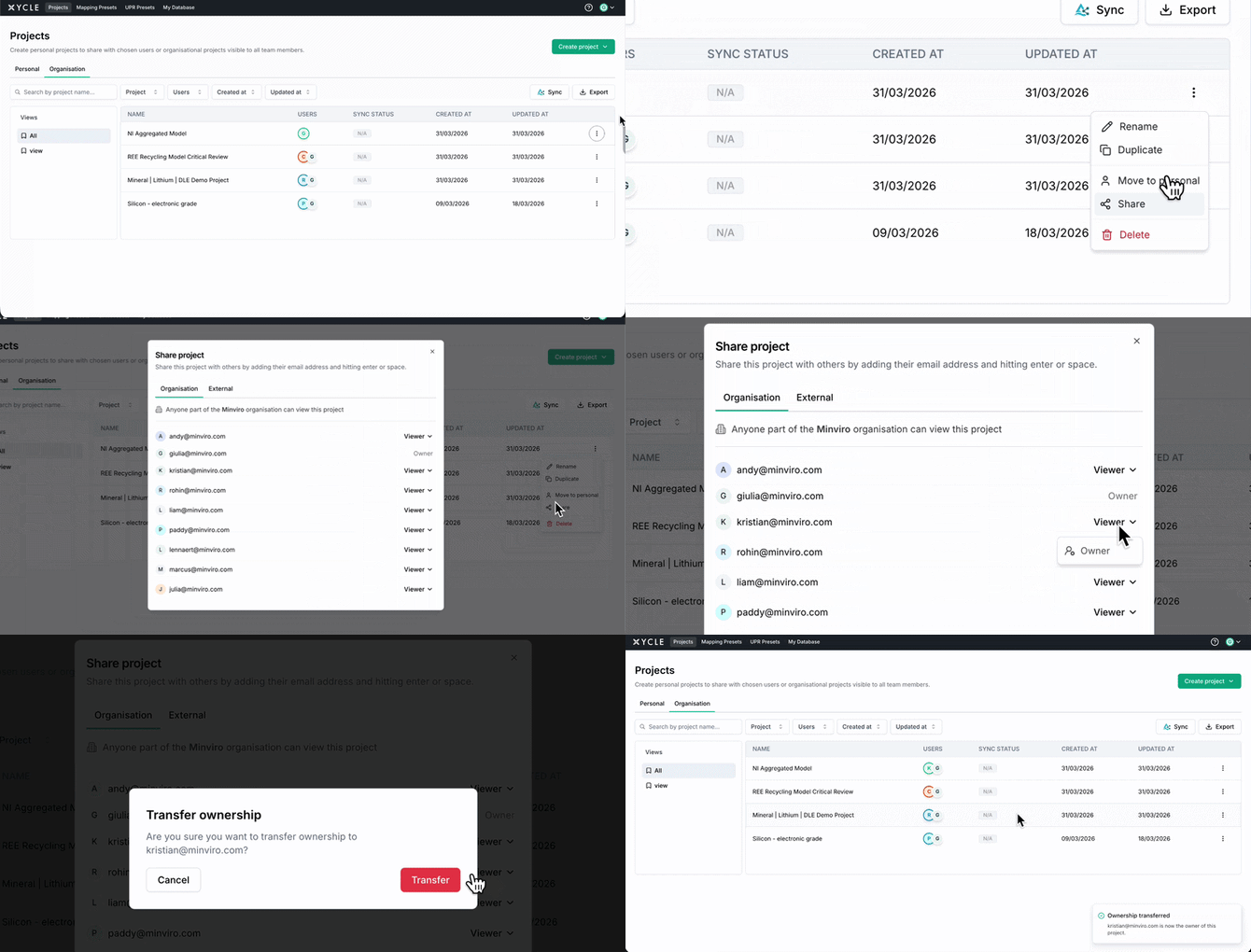
Transfer Ownership
In the Organisation tab of the share modal, click the role dropdown next to any member and select Owner to transfer project ownership. Only the current owner can do this. The previous owner becomes a viewer.
Tips
- Organisation members cannot be added as external collaborators. XYCLE prevents duplicates and shows a validation message if you try.
- Viewers can access and explore the project but cannot edit the model or inventory data. Their licence type determines what they can do across all projects.
- Changing a project's visibility after creation is only available to the project owner.
- UPR presets and mapping presets follow the same visibility model. Mark them as "Organisation" to share templates within your team.
Next Steps
To understand your organisation's members and database access, see "Managing Your Organisation in XYCLE". To start building your first LCA model, see "How to Build Your First Model".