.png?width=200&height=58&name=Primary_White_XYCLE_Logo.png-09%20(2).png)
1. Download Import Template
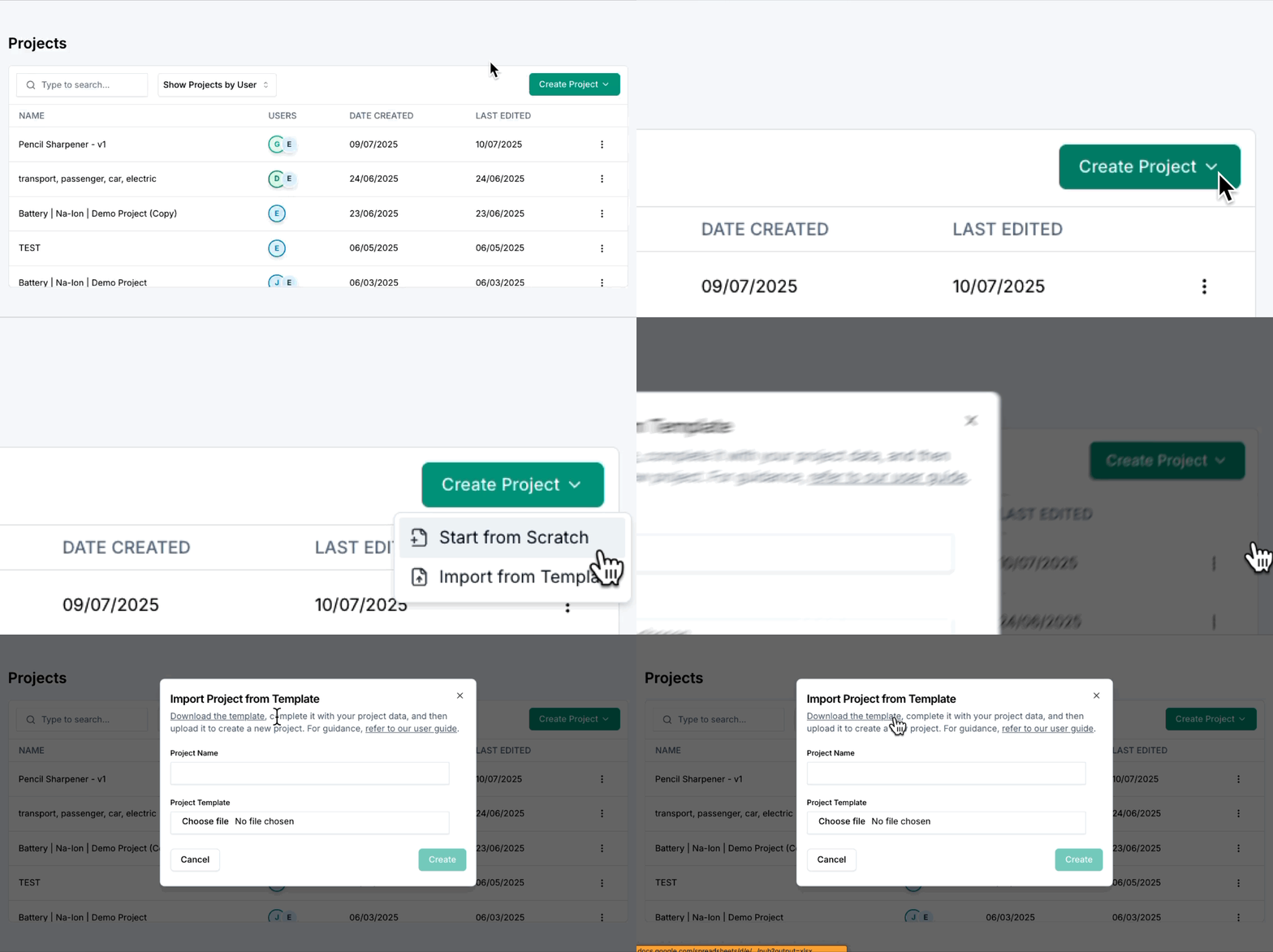
Open XYCLE, click "Create Project", and then click "Import from Template". In the pop-up there will be an option to download the import template directly within the XYCLE platform.
This template provides the correct format and structure for importing custom data into XYCLE.
2. INTERMEDIATE INPUTS Inventory Items
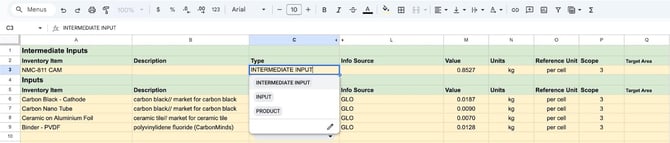
These rows store the items that feed in from a previous unit process. Ensure the Type is set to INTERMEDIATE INPUT.
Note: The first sheet (Process 1) does not have an Intermediate Inputs section, because no upstream process feeds into it.
3. INPUTS Inventory Items
This is where all items added into the system at this stage are stored. Ensure the 'Type' is set to 'INPUT'.

4. PRODUCTS Inventory Items
The products of the system are listed here. Please ensure the Type is set to PRODUCT.

5. Template Columns
This part of the template contains information such as value, units, reference unit, and scope.
Only two fields are required for a successful import:
|
Column |
Required |
Notes |
|
Inventory Item |
Yes |
Used to identify the row. Must have a value. |
|
Type |
Yes |
Must match a valid type: INPUT, INTERMEDIATE INPUT, PRODUCT.. |
|
Description |
No |
Accepts empty values |
|
Value |
No |
Non-numeric or empty values default to 0 |
|
Units |
No |
Accepts empty values |
|
Reference Unit (FU) |
No |
Accepts empty values |
|
Scope |
No |
Accepts empty values (hidden by default) |
|
Info Source |
No |
Accepts empty values (hidden by default) |
|
Target Unit Process |
Maybe |
Required only for Products that link to another sheet (see step 6) |
6. Unit Process Sheets & Linking Products
Located at the bottom, each sheet acts as a single unit process (UPR). The template includes three sheets by default (Process 1, Process 2, Process 3). Rename these to match your actual process names (e.g. “Anode”, “Cathode”, “Battery Assembly”).
For any products in the Products section, the Target Unit Process must be defined and match exactly the name of the sheet into which you want it to flow. This matching is case-sensitive. For example, “battery assembly” would be different from “Battery Assembly”.
In the example below, the Target Unit Process has the name “Battery Assembly”, matching the exact name of the sheet. The product will then appear as an Intermediate Input on the destination sheet.

7. Hidden Columns
The following columns are hidden by default to keep the template focused on required fields. They are all optional and can be filled in directly inside XYCLE after importing.
|
Column |
Definition |
|
Tech |
How well the inventory data represents the process regarding its true technological or technical characteristics. Consider the specific technology used, how it is used, and the specific product made. |
|
Geography |
How well the inventory data represents the process regarding its location. Data typically relates to a market — the unit that allows buyers and sellers to exchange goods and services. A good metric is whether the geographical coverage of the LCI data represents the smallest, appropriate geographical unit. |
|
Time |
For processes operated within ±5 years: use the most recent data that is still valid. For processes operated beyond ±5 years: fully time-representative data should be used, which can be forecasted or historical data. |
|
Completeness |
Share of (elementary) flows that are quantitatively included in the inventory. For product and waste flows this needs to be judged at a system level. Refer to the Data Quality sheet for qualitative guidance. |
|
Precision |
Measure of the variability of the data values for each data expressed (e.g. low variance = high precision). For product and waste flows this needs to be judged at a system level. Refer to the Data Quality sheet for qualitative guidance. |
|
Methodology |
Whether the applied LCI methods and methodological choices (e.g. allocation, substitution) are in line with the goal and scope of the data set, especially its intended applications and decision support context. Methods should be consistently applied across all data. |
|
DQR |
Overall Data Quality Rating. |
|
Data Quality |
Column for entering the method used to assess the quality of LCI and LCIA data. |
|
Info Source |
Source of the data. |
|
Scope |
Defines the breadth, depth, and detail of the study. |