.png?width=200&height=58&name=Primary_White_XYCLE_Logo.png-09%20(2).png)
Creating a New Preset
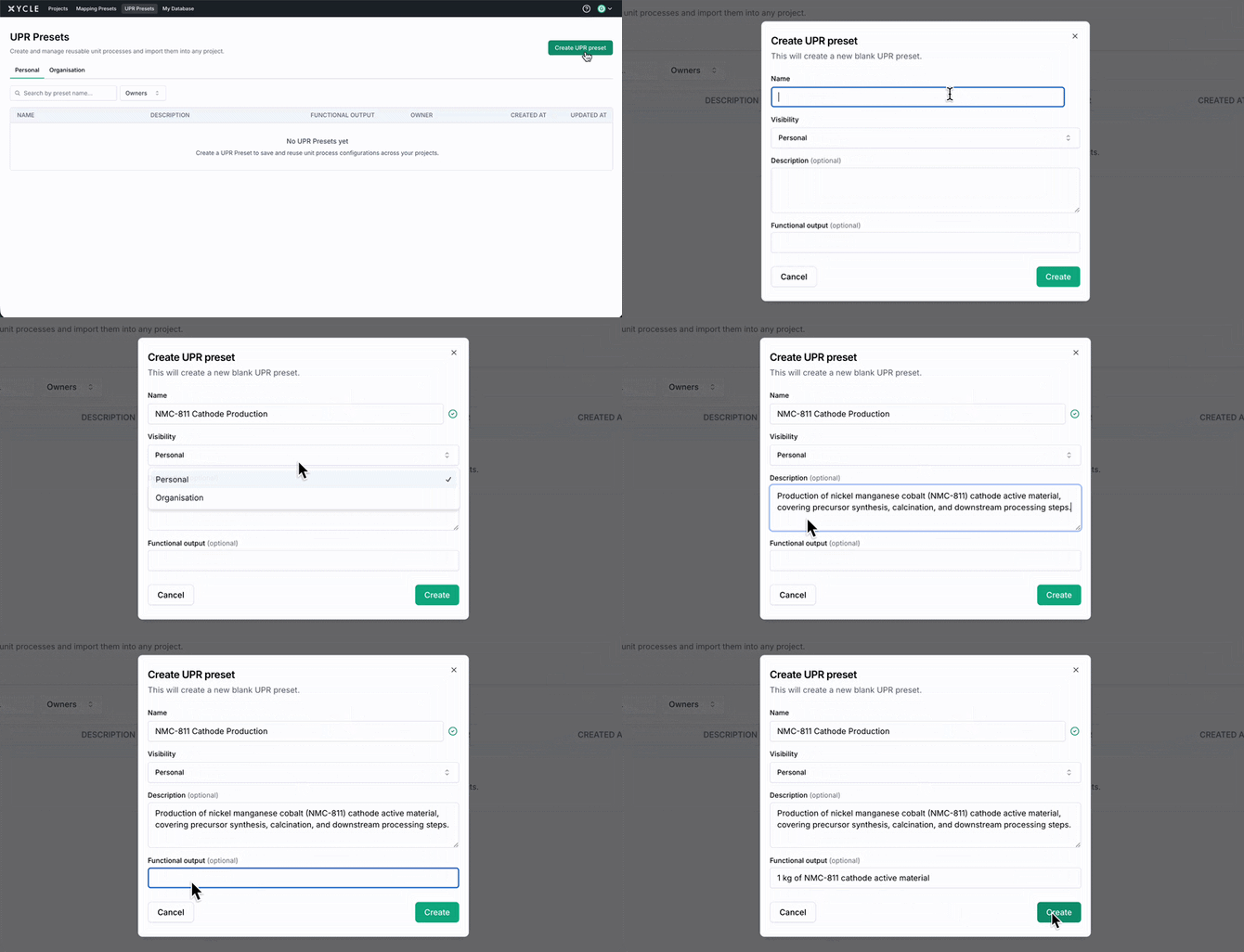
- Select UPR Presets from the main navigation bar
- Click Create UPR preset
- Fill in the required fields:
- Name: Must be at least 3 characters.
- Visibility: Personal keeps it private to you. Organisation shares it within your organisation. This cannot be changed after creation.
- Description (optional): What this unit process represents.
- Functional output (optional): For example, "1 kg of lithium carbonate".
- Click Create
If you belong to an organisation, the list page is split into Personal and Organisation tabs.
Adding Inventory Items
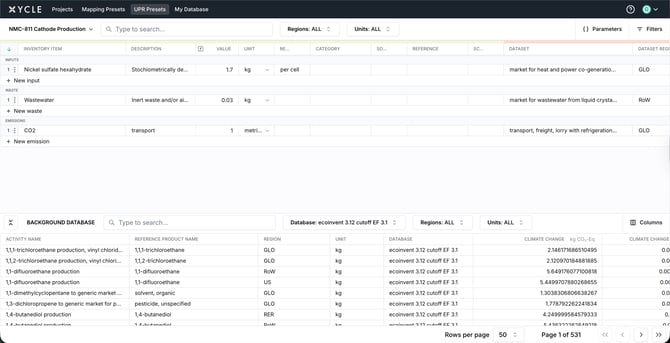
- Click New input, New waste, or New emission to add an item
- Fill in the name, value, unit, and any other relevant fields
- To map an item to a background activity, open the Background Database panel at the bottom of the page
Items are grouped by type:
- Inputs: Materials and energy entering the process.
- Waste: Outputs that are not the functional product.
- Emissions: Direct releases to the environment.
Adding Parameters
- Click the Parameters button in the top-right of the table header
- Click + New parameter
- Enter a name and a value or formula
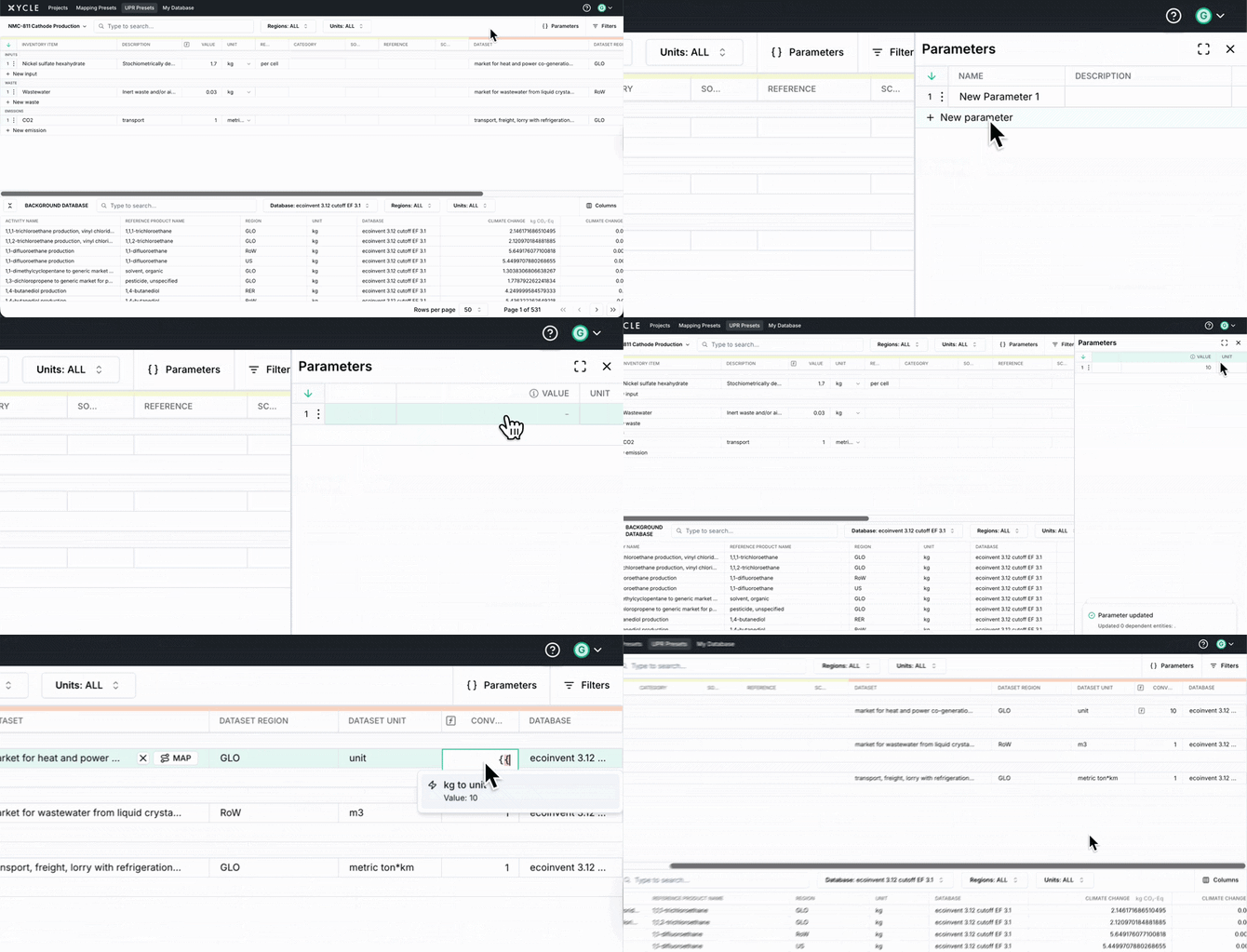
Parameters can reference other parameters, so you can build calculated fields. For example, define a transport distance and reuse it across multiple inventory items.
When you import a preset into a project, its parameters come along as project-level parameters.
Creating a UPR Preset from an Import Template
Import a UPR preset directly from an XYCLE .xlsx import file, instead of starting from scratch or duplicating an existing preset—useful when the unit process already exists as a template and you just need it as a reusable preset.
- On the UPR Preset tab, click the arrow next to Create and select Import from template
- Enter a name for the preset
- Upload the .xlsx file—use the template download link in the dialog if you need a blank copy
- If the file has more than one sheet, choose which sheet to import; single-sheet files are selected automatically
- Optionally select a Mapping Preset to map inventory items on creation
- Click Import
Only the inventory rows from the chosen sheet become the preset. You're taken to the new preset's detail page once it's created.
How Mapping Works on Import
If you select a mapping preset, XYCLE matches each inventory item by name, description, unit and region, and applies the matching background activity. Items with no match are still created—just left unmapped. A toast confirms how many items were mapped and how many were not.
N.b. Target Unit Process and Target Area columns from the template are not used here—these apply only to project import. Functional output is always left blank on import; set it manually on the preset afterwards.
Managing Your Presets
Click the three-dot menu on any preset you own:
- Edit details: Update name, description, or functional output.
- Duplicate: Creates a copy with the same visibility as the original.
- Delete: Permanently removes the preset. You'll be asked to confirm.
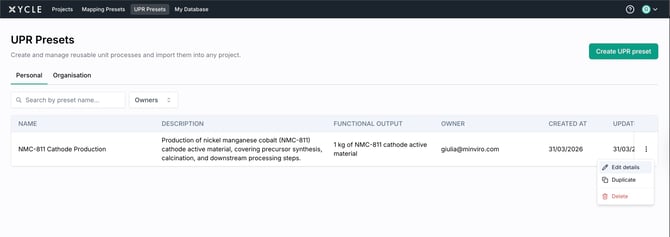
Organisation members who don't own a preset can View details and Duplicate it, but cannot edit or delete it.
Tips
Use clear, descriptive names. Your colleagues will search by name and description, so "NMC-811 Cathode Production" is more useful than "Preset 1".
If you're not sure about visibility, start with Personal. You can always create a new
Next Steps
Learn how to import presets into your projects. See "How to Use UPR Presets in Your Projects".
Troubleshooting
- I imported the same preset twice and now have duplicate rows. Each import appends rows independently. Check your inventory before re-importing.
- I want to combine multiple presets into one unit process. Use Populate from UPR Preset on the same unit process multiple times. Each set of rows is appended in order.
- I imported a preset and some items aren't mapped. Only items matching an existing background activity by name, description, unit and region are mapped. Check the item details against the mapping preset's source data, or map missing items manually on the preset afterwards.