.png?width=200&height=58&name=Primary_White_XYCLE_Logo.png-09%20(2).png)
This guide explains how to prepare and export your XYCLE project data in a structured Excel format. Because exports are based on your on-screen layout, you'll need to configure your view first—ensuring that only the relevant columns, categories, and normalisation settings are included. You can then generate an .xlsx file to support reporting, peer review, or further calculations outside of XYCLE.
1. Setting Up The Project For Export
XYCLE exports follow what you see is what you get. This means the exported file will mirror your current on-screen view, including selected columns, normalisation settings, and layout.
Before exporting:
- Normalise the project to your desired reference product (if applicable).
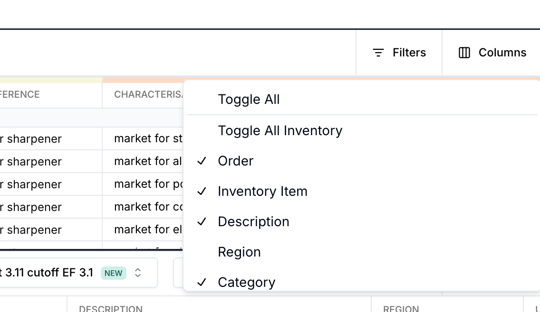
- Adjust the columns using the column selector to include only the data you want to export.
- Use the bulk toggle options to quickly display or hide categories.
- Confirm that your on-screen view includes everything required for your report.
2. Exporting
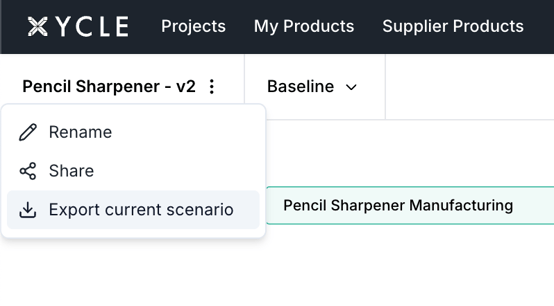
- Click the three-dot menu next to your project name.
- Select Export Current Scenario.
- Choose where to save the file and confirm the download.
Note: The exported file will be saved as an .xlsx.
The default filename format is: YYYYMMDD_project-name_scenario-name.xlsx