.png?width=200&height=58&name=Primary_White_XYCLE_Logo.png-09%20(2).png)
Mapping Presets speed up building an LCI by automating the assignment of common background data points when creating projects. You can create multiple presets for different types of projects.
Creating a Mapping Preset
Once you have a project and assigned background data to inventory items, you can then create a Mapping Preset from the project. You must be the project owner to create a Mapping Preset from a project.
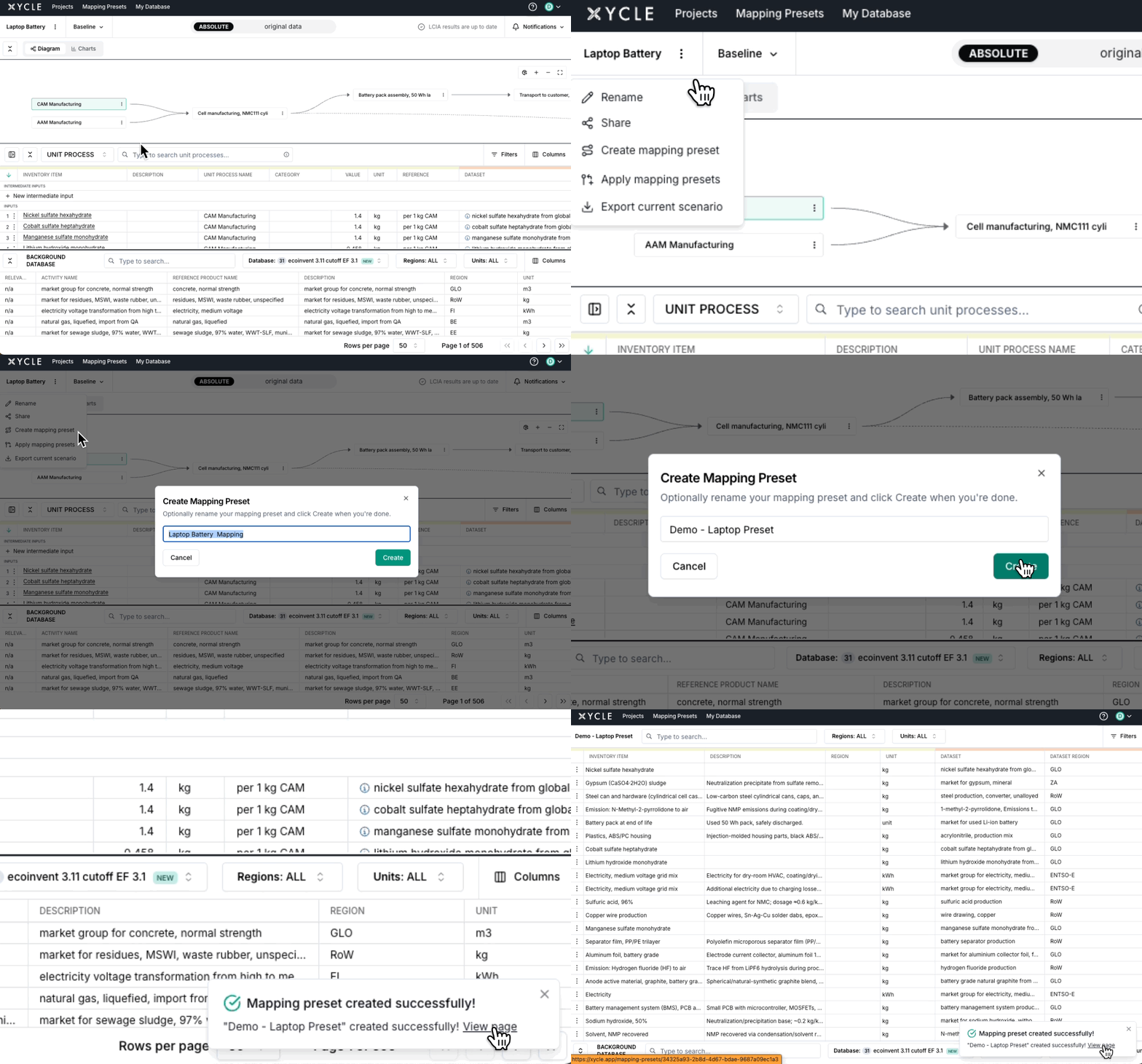
Steps to create a Mapping
- Click the project main menu dropdown.
- Select Create Mapping preset.
- If you don’t see this option, then you will likely only be a viewer of that project, as it has been shared with you from the owner. You will need to duplicate the project and then follow these steps on the copied version, where you are the owner.
- You will be shown a modal where you can choose a name for the mapping preset.
- Currently this name cannot be changed after creation, but the ability to edit it is on the product roadmap. The default is the name of the project with “Mapping” added.
- Click Create on the “Create Mapping Preset” modal. You will see a loading indicator as the mapping is being created.
- If the creation is successful the modal will close and a toast notification will pop up on the bottom right of the browser window. This will include a message with a link to the newly created mapping, which you can click to view, or close the notification. It will automatically disappear after 10 seconds.
When creating a mapping, any identical values across the mapped fields are deduplicated automatically. If a unique value already has background data assigned, it will be stored in the Mapping Preset. The first instance of this value is kept, and the rest are disregarded.
Viewing & Editing Mapping Presets
Mapping Presets can be found under the ‘Mapping Presets’ main navigation item.
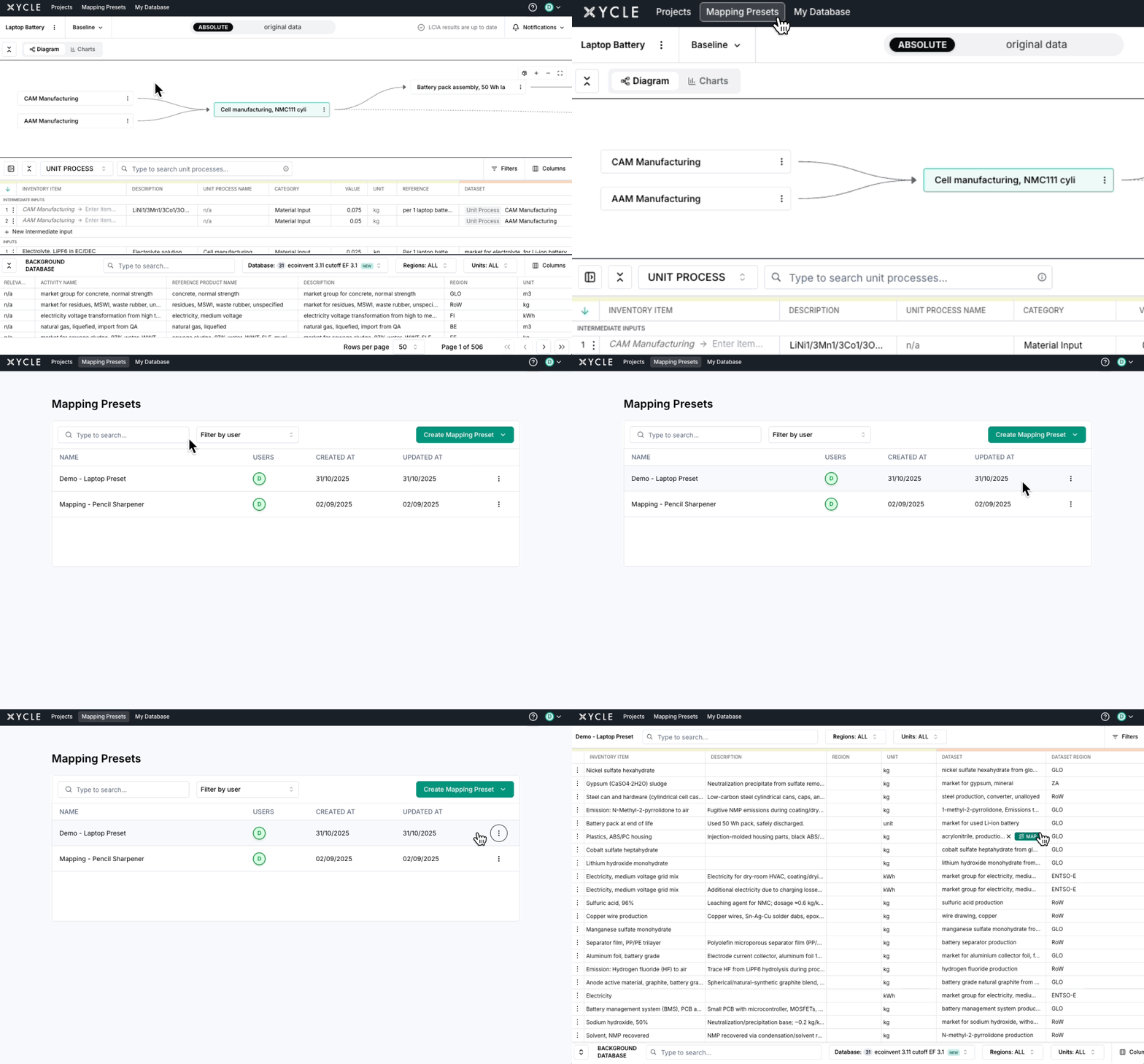
Currently, you can only see your own Mapping Presets. The ability to share Mapping Presets, similar to sharing projects, is on the product roadmap. Once this is available, you will also be able to see presets that have been shared with you.
Selecting one of your created Mapping Presets will open the Preset for viewing. This table has seven columns:
- Inventory Item
- Description
- Region
- Unit
- Dataset
- Dataset Region
- Database
Mapping Presets can now be viewed, edited, and expanded after creation.
You can add, remove, or modify mappings directly in the preset (e.g. add new background data like “low carbon electricity”).
Preset names still cannot be changed after creation, but full editing of mappings is now supported.
Just like the Project tables, you can filter and sort the table rows.
Editing a Mapping Preset
You can now edit Mapping Presets after creation.
From within a preset, you can:
- Add new mappings (for example, to include “low carbon electricity” or alternative datasets).
- Remove or update existing mappings.
Changes are saved automatically once confirmed. The preset name itself cannot yet be changed.
Using Mapping Presets
When creating a project from a template, if you have a Mapping Preset available you can select a Mapping Preset to apply to the file being imported.
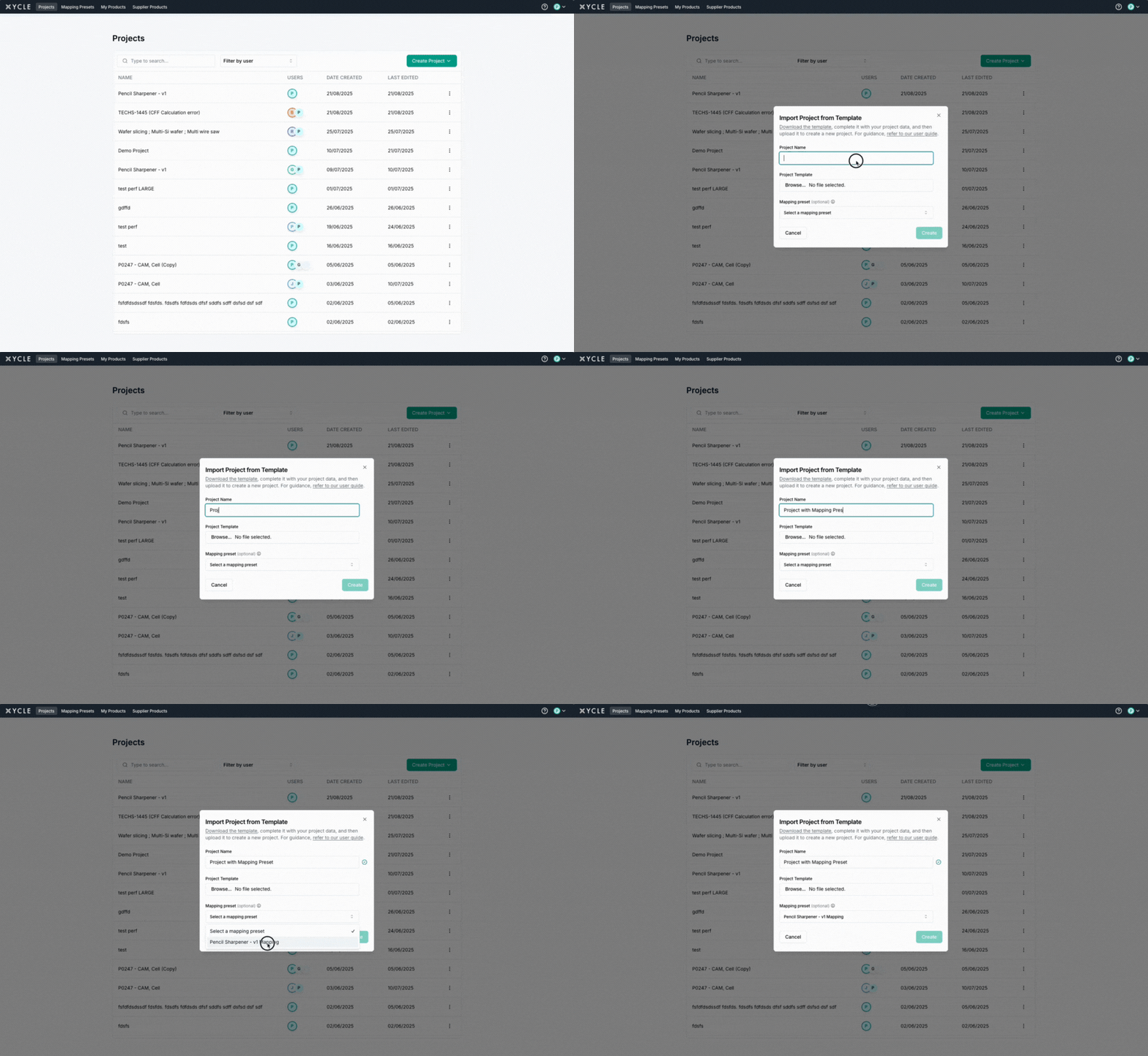
To apply during project creation:
-
On the XYCLE Projects page, click the “Create Project” button.
-
Select the “Import from Template” dropdown option.
-
You should see an ‘Import Project from Template’ modal with three inputs, including “Mapping Presets,” which is optional.
-
After giving the project a name and selecting a template file to import, select one or more Mapping Presets from the dropdown.
-
Click Create.
-
Once the newly created project loads, any items that match the Mapping Preset items will already have their background data assigned.
-
To apply to an existing project or scenario:
You can now apply Mapping Presets to existing projects or scenarios.
This allows you to reuse or compare different mappings without starting from scratch.
-
Open the project or scenario.
-
Choose Apply Mapping Preset.
-
Select one or more presets to apply.
-
Confirm to update the mappings in your current project or scenario.
How does the Mapping Preset Equality check work
When you apply a preset, XYCLE looks for matching inventory items in your project and automatically assigns their background data. Matching is not case-sensitive, so "Steel" and "steel" are treated the same.
XYCLE checks items in two steps:
Step 1 — Full match
XYCLE looks for an exact match on all four fields: Inventory Item, Description, Unit, and Region.
Step 2 — Flexible match (when Description is blank)
If no full match is found and you've left the Description blank in your preset, XYCLE will try matching using just three fields: Inventory Item, Unit, and Region. This is useful when the same item appears across projects with different descriptions. To be safe, this only works when there's a single item in your project with that combination. If there are duplicates, XYCLE skips the match rather than guessing.
Examples:
|
Preset item |
Project item |
What happens |
Explanation |
|
Steel, Hot-rolled, kg, EU |
Steel, Hot-rolled, kg, EUto match using only |
Matched |
Everything matches |
|
Steel, Hot-rolled, kg, EU |
Steel, Cold-rolled, kg, EU |
Not matched |
The descriptions are different, and the preset has a description set |
|
Steel, (no description), kg, EU |
Steel, Cold-rolled, kg, EU |
Matched |
The preset has no description, so XYCLE only checks the other three fields |
|
Steel, (no description), kg, EU |
Two project items both called "Steel, kg, EU" with different descriptions |
Not matched |
There are multiple items with the same name, unit, and region — XYCLE can't tell which one you mean, so it skips the match |
|
Steel, Hot-rolled, t, EU |
Steel, Hot-rolled, kg, EU |
Not matched |
The units are different |
|
Steel, Hot-rolled, kg, EU |
Steel, Hot-rolled, kg, US |
Not matched |
The regions are different |
|
Steel, Hot-rolled, kg, (no region) |
Steel, Hot-rolled, kg, EU |
Not matched |
A blank region only matches another blank region |
|
Steel, Hot-rolled, kg, (no region) |
Steel, Hot-rolled, kg, (no region) |
Matched |
Both regions are blank, and all other fields match |