.png?width=200&height=58&name=Primary_White_XYCLE_Logo.png-09%20(2).png)
1. Select Your Process Block
Open the LCA project where co-product allocation is required. Navigate to the unit process you want to allocate impacts for. Co-product allocation is typically used when one process yields multiple outputs, such as a main product and a valuable by-product or scrap.
2. Click on the ‘Allocate’ Button
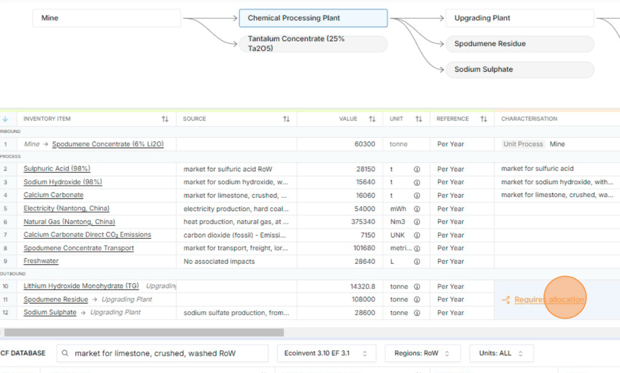
Locate the outbound flow you want to apply allocation to. Click on the 'Requires Allocation' button in the final product row. This opens the co-product allocation interface.
3. Choose Allocation Type
Select your desired allocation method from the dropdown. The options include:
-
Mass Allocation — Use when the environmental burden should be split based on the mass of each co-product.
-
Economic — Use when the burden should be split according to the economic value (price or revenue) of each product.
This choice will affect how the impacts are divided across the two (or more) co-products. Ensure consistency of units, as there is no automatic unit conversion.
In cases where a co-product displaces another product on the market, and reliable data (emission factors) on the product or service that the co-product is assumed to displace exists, we can use System Expansion.
4. Choose Co-Product Allocation or System Expansion
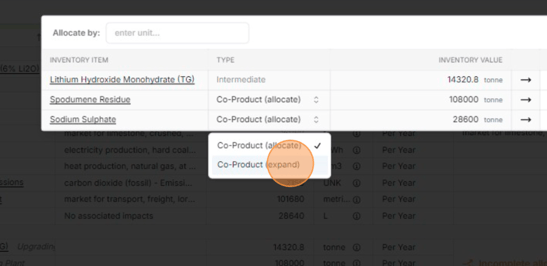
Click the "Type" dropdown next to your co-product.
- Select Co-Product (allocate) to divide environmental impacts.
- Select Co-Product (expand) if your co-product displaces another product on the market.
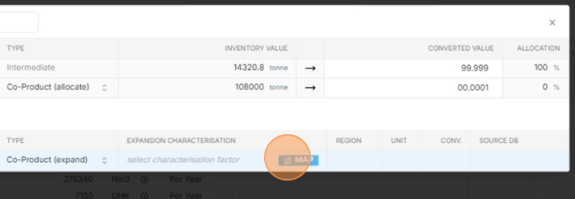
5. Map an Emission Factor (for System Expansion)
If you're using System Expansion, choose an appropriate characterisation factor from a background database.
6. Select the Dataset Row
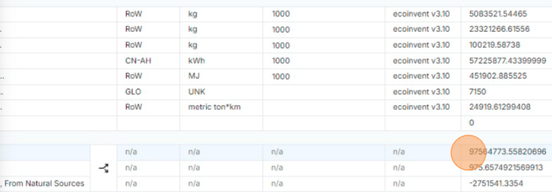
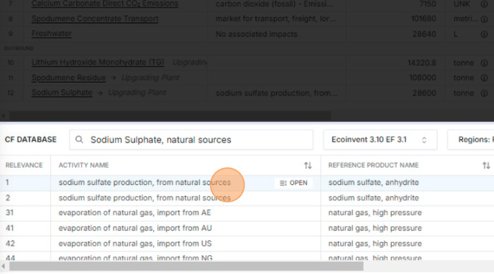
Click on the dataset row (e.g. “sodium sulfate production, from natural sources”) in the database panel to finalise the mapping.
7. Save and Close
Once your values and allocation or credit type have been set, close the modal to apply the allocation.
Your allocation or credit is now reflected in the inventory table, visible under the appropriate row.
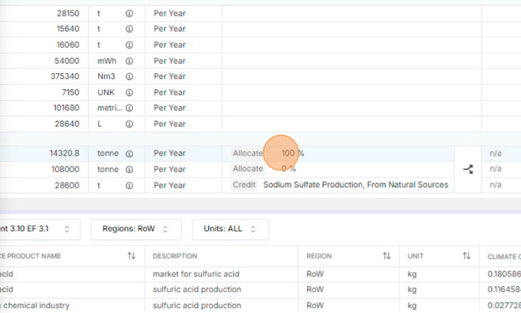
XYCLE automatically recalculates impact scores. Where system expansion is used, credits are applied (seen as negative values) to reflect avoided burden.